Connect Gemini Spark
Connect Gemini Spark to Vocci. Vocci is not listed in Gemini's app directory, so you add it as a custom app using the Vocci MCP server URL. You add it once from the Spark Connected Apps page, and it then works in Spark on both the web (gemini.google.com/spark) and the Gemini mobile app.
- Gemini Spark — the agentic task surface in the Gemini app. You are in the right place; follow the steps below.
- Gemini CLI or Antigravity — the terminal tools. These read their own local configuration file rather than your Connected Apps settings, so the steps below do not apply.
- Gemini Enterprise — an administrator connects an MCP server as a custom data store in the Google Cloud console, not through personal Connected Apps.
Before You Start
Google applies eligibility requirements to custom apps. Confirm all of the following first — if any one of them is unmet, the Custom apps for Spark section does not appear at all:
- You have access to Gemini Spark.
- You are 18 or over and located in the United States.
- You are signed in with a personal Google Account. Work and school accounts are not supported for this feature.
- Keep Activity is turned on. Gemini cannot connect to custom apps while this setting is off.
- Your Gemini language is set to English.
Google documents custom apps for Spark tasks. In our testing (October 2026), a connected Vocci also answered in regular Gemini chats in the Android app, both with @Vocci and without it.
Setup
Add the custom app on a computer. Once it is connected, it is available in Spark on mobile as well.
On an Android phone, adding Vocci from the phone's browser can fail at the last step. After you choose Allow, Android hands Google's sign-in return to the Google app, which cannot finish a setup that started in the browser, and you land back on the Vocci sign-in page. Add Vocci from a computer instead; the connection then works in the Gemini app on your phone.
-
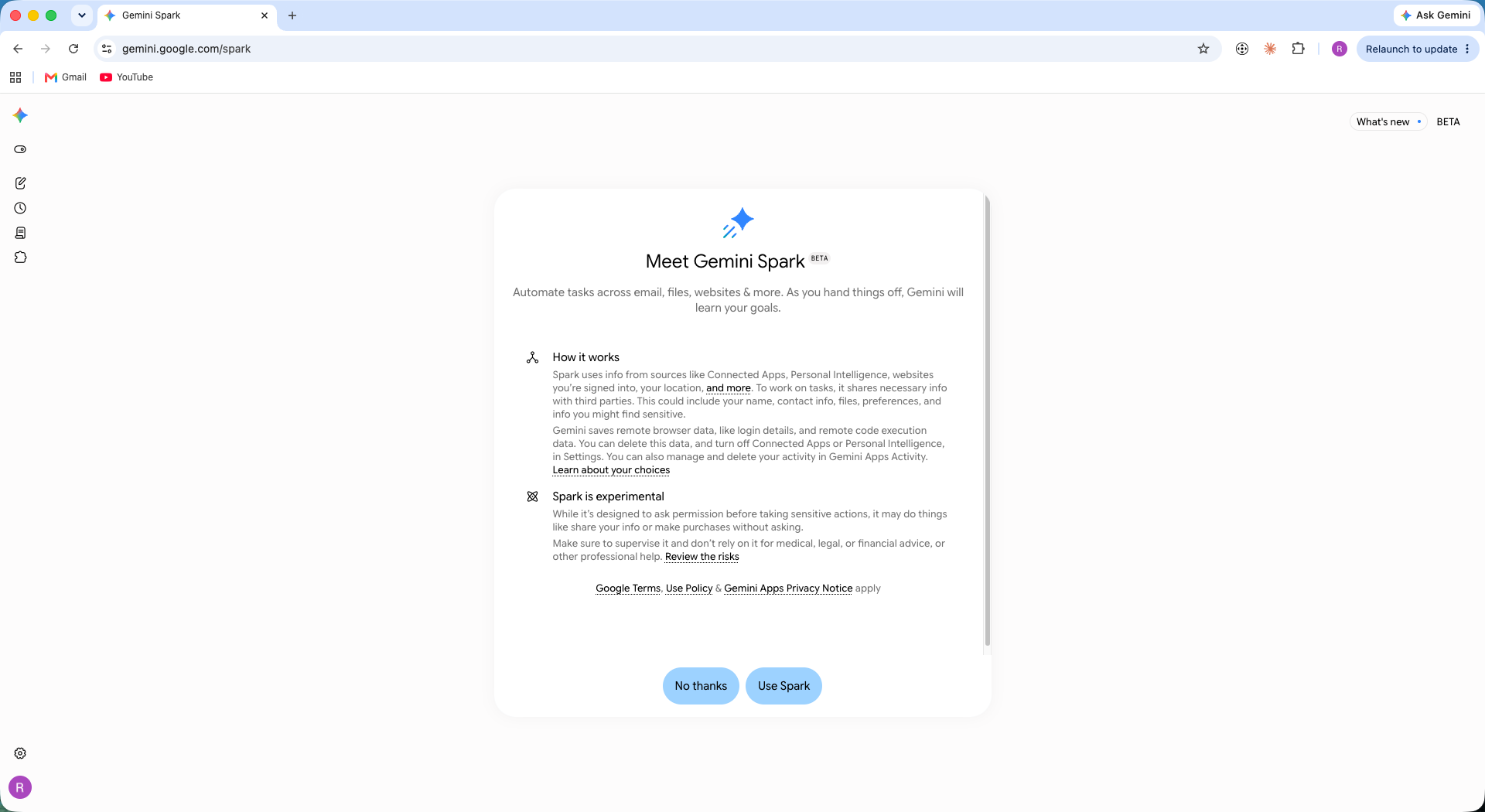
Go to gemini.google.com/spark. If this is your first time, review the introduction and click Use Spark.
-
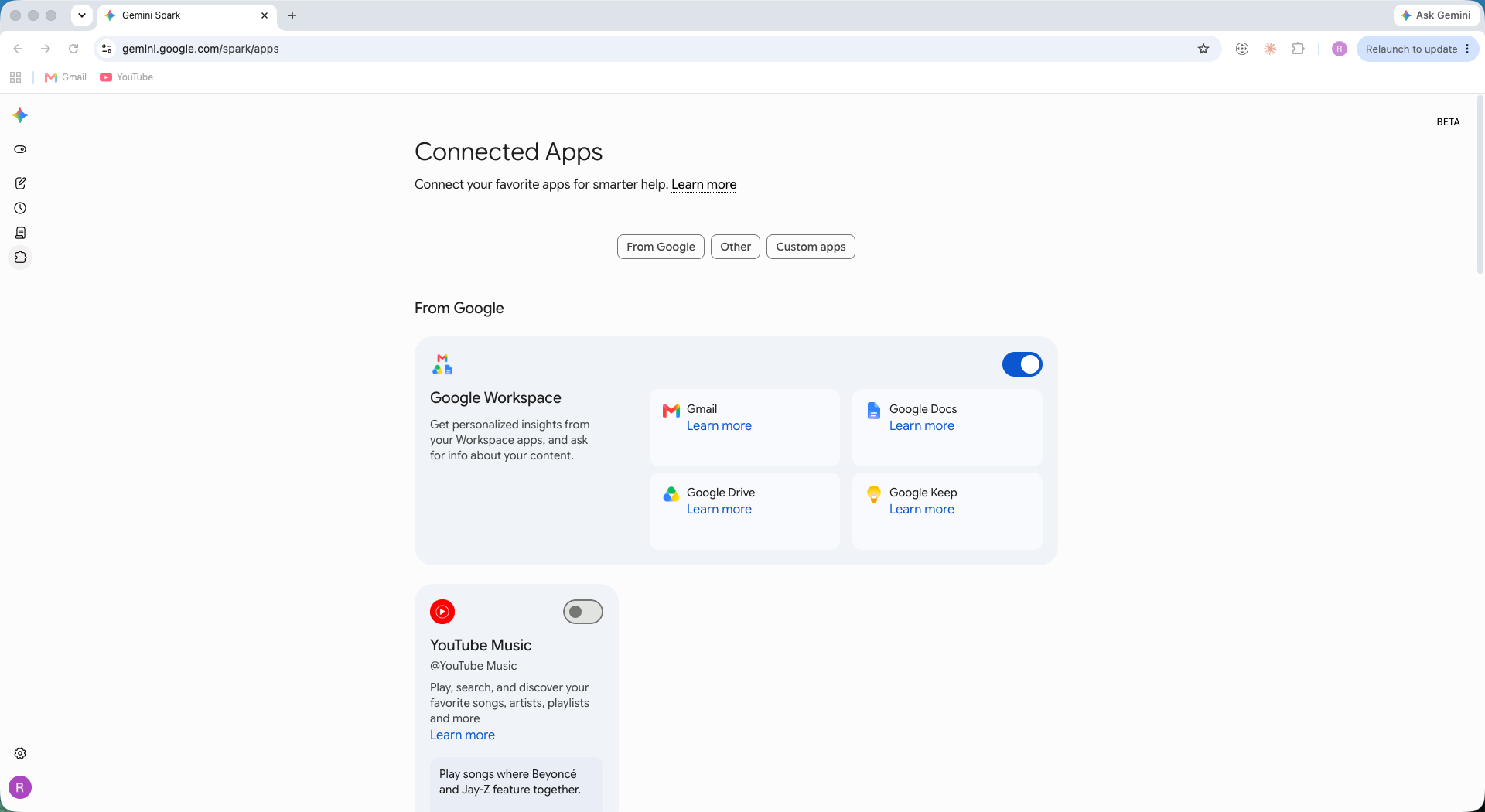
Open Connected Apps from the left sidebar, then select the Custom apps tab.
-
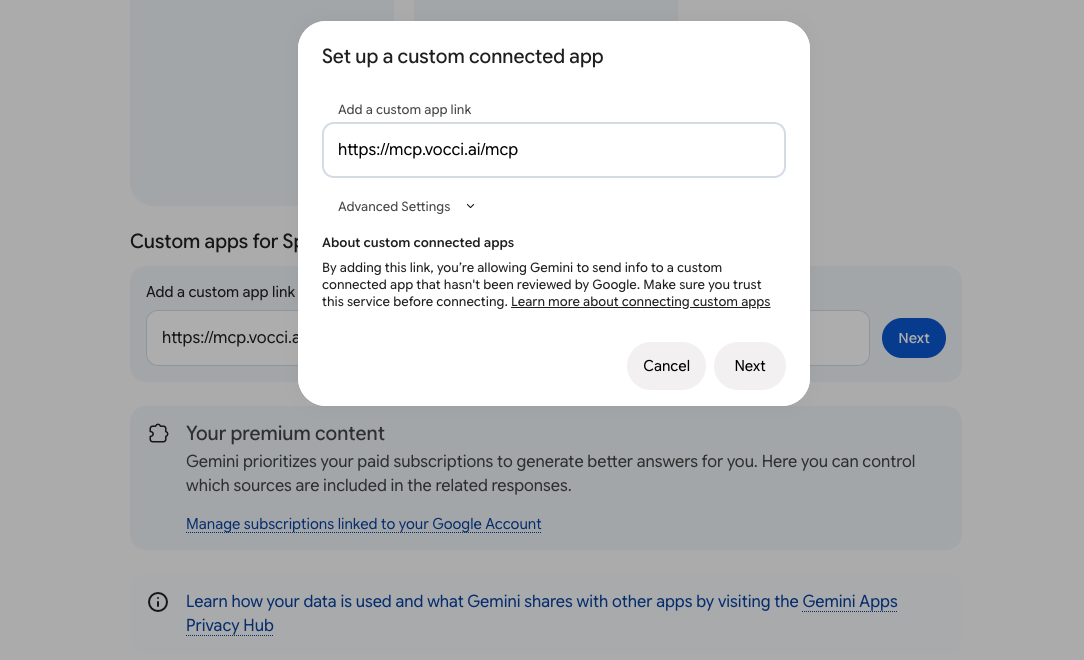
Under Custom apps for Spark, click Add a custom app. In the Add a custom app link field, enter the Vocci MCP server URL, then click Next.
https://mcp.vocci.ai/mcpLeave Advanced Settings collapsed. Vocci registers automatically, so you do not need to enter client credentials.
-
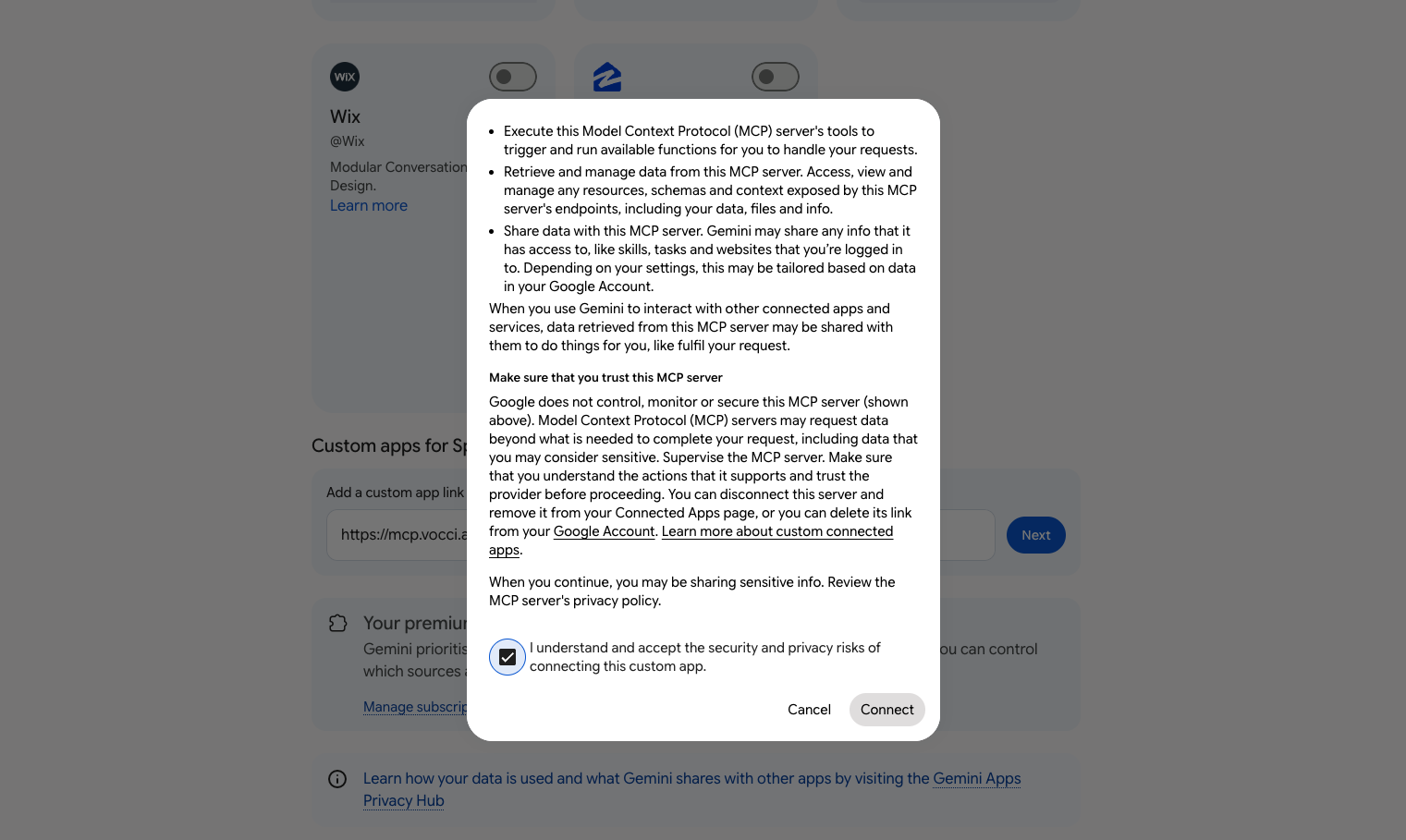
Review what the MCP server is allowed to do, tick I understand and accept the security and privacy risks of connecting this custom app, then click Connect.
-
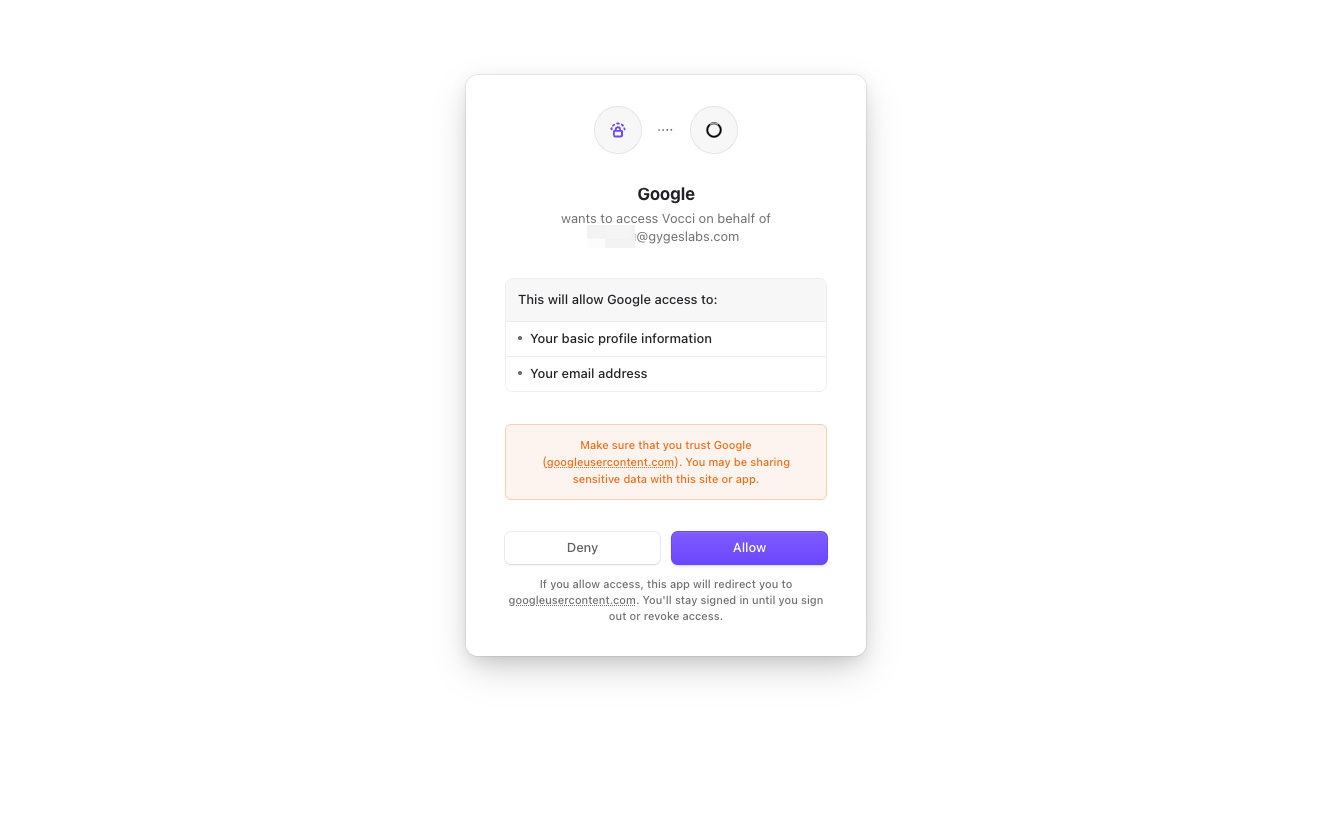
Sign in to Vocci, then click Allow to grant access.
-
Gemini syncs the available Vocci actions and asks you to name the app. The default name is Vocci Mcp. Rename it to Vocci — this is the name you use to call Vocci with
@— then click Connect.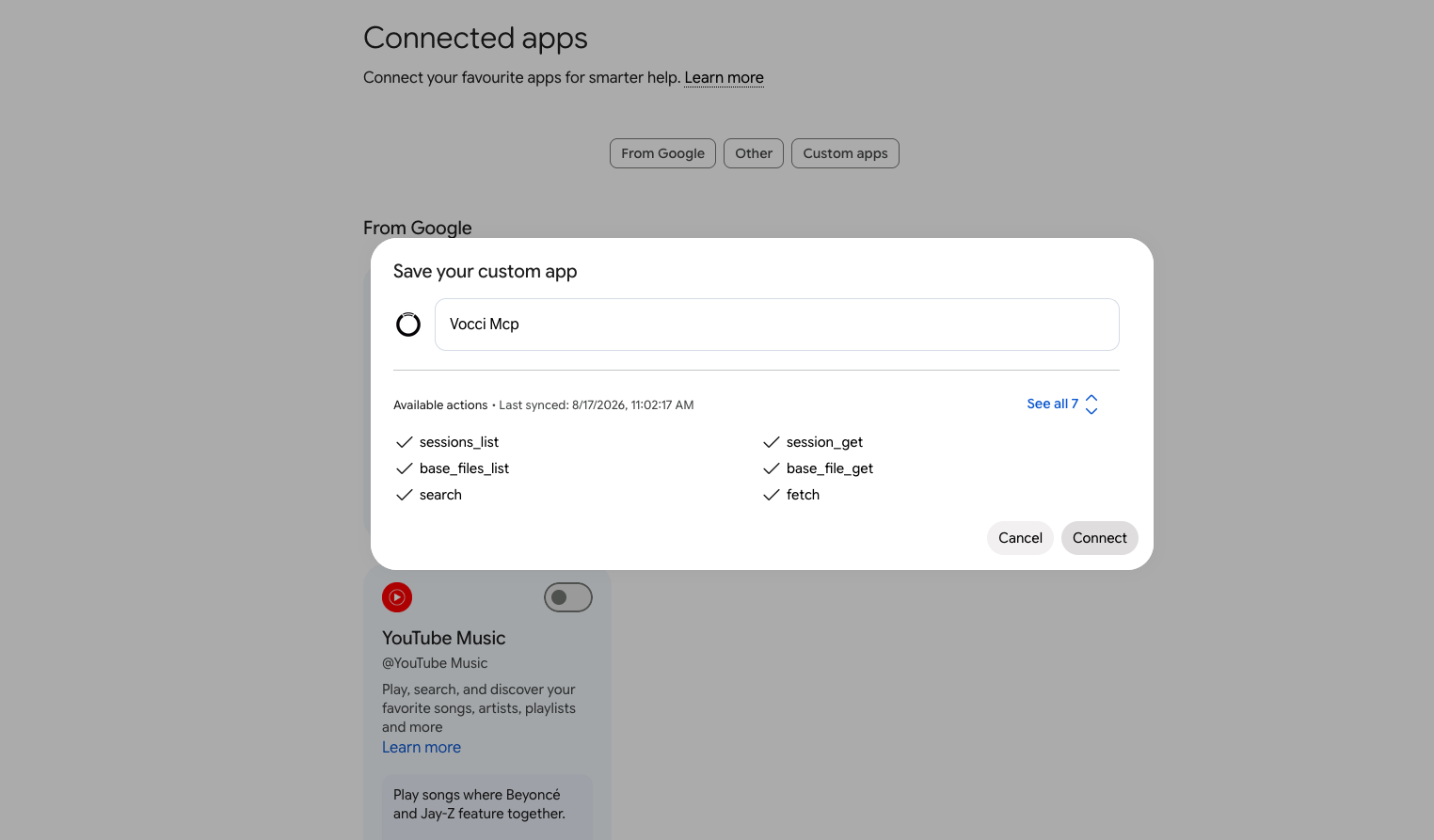
-
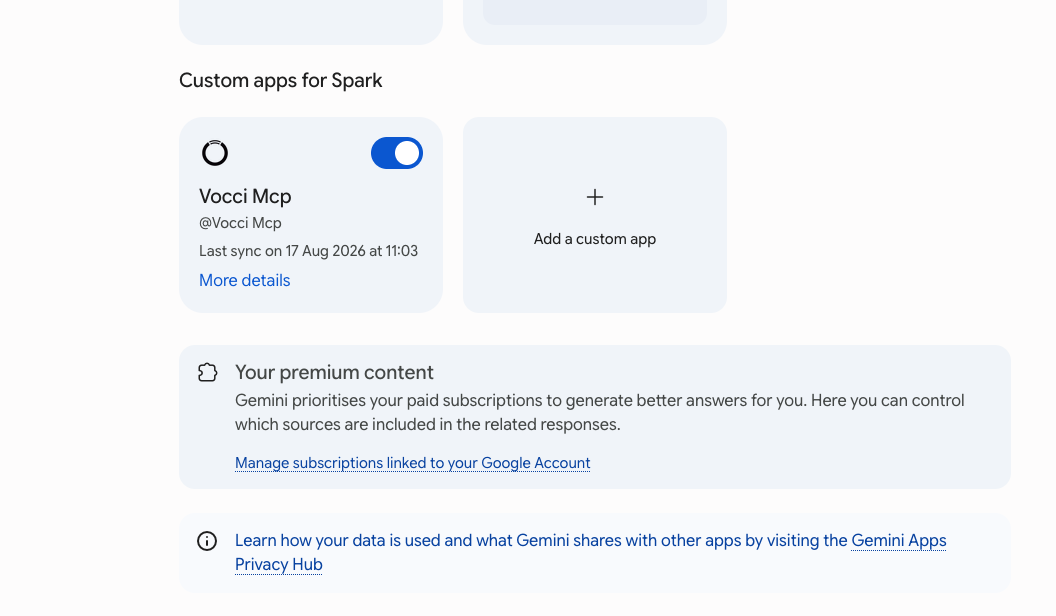
Confirm that Vocci appears under Custom apps for Spark and is turned on.
Vocci requests your basic profile and email address to sign you in, plus offline access so the connection keeps working without you needing to re-authenticate every session. Vocci MCP provides read-only access — Gemini can search and open approved context, but it cannot change Vocci data through this connection.
Verify Installation
Your setup should now be complete when:
- Vocci appears under Custom apps for Spark and is turned on.
- The Save your custom app dialog listed the available Vocci actions, including
sessions_list,session_get, andsearch. - Typing
@in a Spark task lists Vocci as an available app.
Start a Spark task and try:
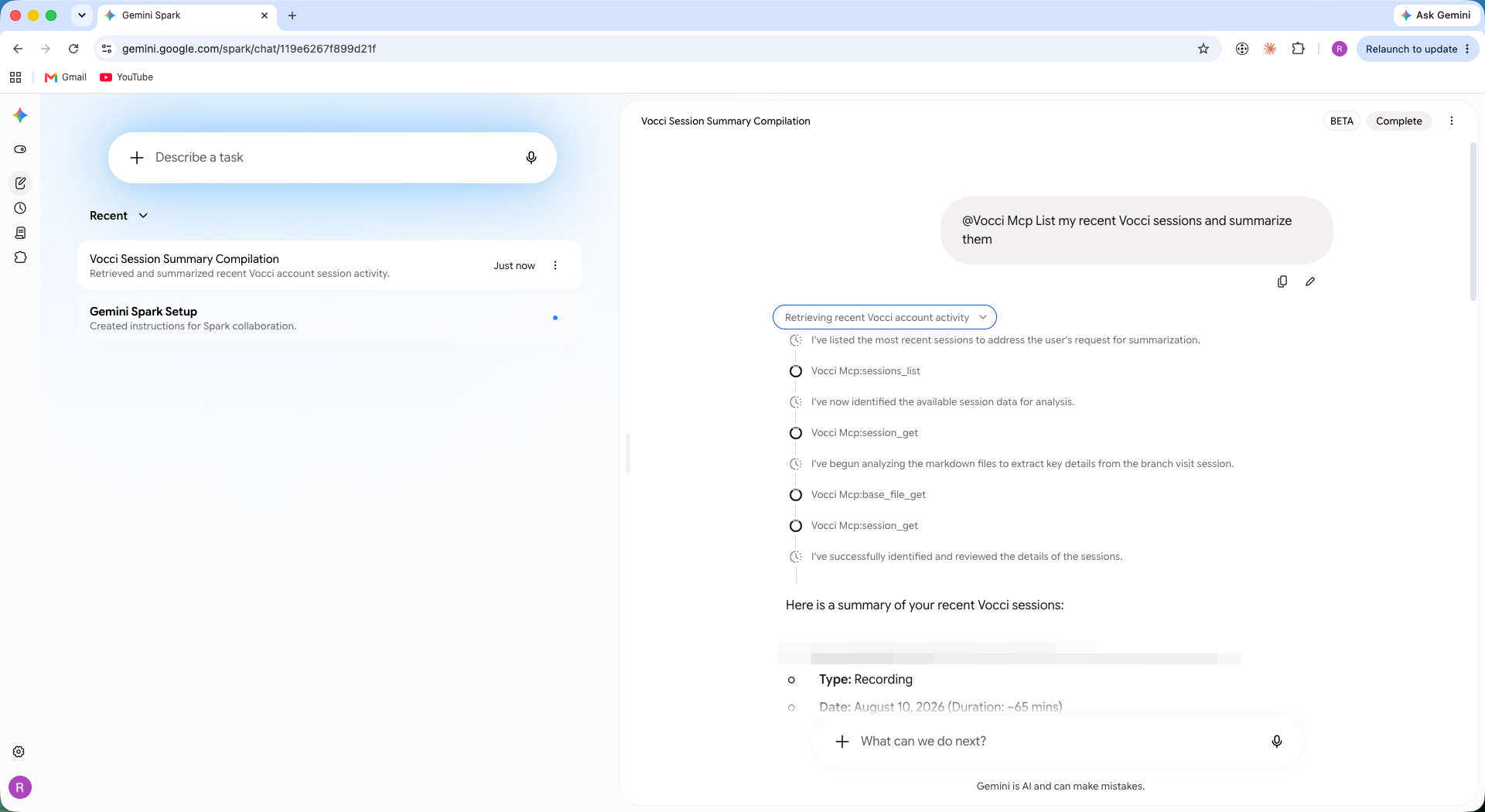
@Vocci List my recent Vocci sessions and summarize them
Spark shows each Vocci action as it runs, then returns your recent sessions with titles, summaries, and source IDs. If a session looks relevant, Gemini can open it in more detail.
Recommended: Use Vocci Automatically
By default, Gemini only uses Vocci when your task makes it obvious. The most reliable way to invoke it is to type @ and select Vocci in your prompt.
To make it proactive — so you do not have to select Vocci every time — add a standing instruction in your Gemini personalization settings. The exact menu path varies by Gemini version.
When meeting notes, past conversations, decisions, follow-ups, or other Vocci-recorded context would help you answer better, use the Vocci connector to search my Vocci context before answering.
Now a task like "What did we decide about the launch date?" makes Gemini check your Vocci context on its own. Vocci access stays read-only.
Notes
Gemini UI names can change. If a label looks different, the important pieces are Connected Apps, the Custom apps tab, Custom apps for Spark, Add a custom app link, the risk acknowledgment checkbox, and the Vocci sign-in flow.
If Custom apps for Spark does not appear at all, re-check the requirements in Before You Start. A work or school account and a disabled Keep Activity setting are the two most common causes.
Google does not control, monitor, or secure custom MCP servers, and recommends connecting only servers you trust. Vocci MCP is read-only: it can search and open your approved Vocci context, but it cannot modify Vocci data.