Connect Claude Code
Connect Claude Code — the developer tool you run in a terminal — to Vocci. Setup uses the claude mcp add command.
This page is for Claude Code, the tool you run in a terminal.
Check /mcp first. If you already added the Vocci connector in the Claude app and you sign in to Claude Code with the same Claude account, Vocci may already be available — run /mcp and look for vocci before adding it again. Use claude mcp add below if it is not listed, or if you want a local, machine-scoped setup independent of the app connector (a locally added server with the same URL takes over from the account connector).
Setting up the Claude app itself (web, iPhone, Android, or the Mac/Windows desktop app)? That uses a one-time connector — see Connect Claude.
Setup
Before you start, make sure Claude Code is installed and you are signed in.
Add the Vocci remote MCP server:
claude mcp add --transport http vocci https://mcp.vocci.ai/mcp
Then sign in. In an interactive Claude Code session, run:
/mcp
Select vocci, choose Authenticate, and complete the Vocci sign-in in your browser. Claude Code stores the token and refreshes it automatically.
By default the server is added for the current project only. To make Vocci available in every project, add --scope user:
claude mcp add --transport http --scope user vocci https://mcp.vocci.ai/mcp
Use the browser sign-in flow. Do not paste browser session values, OAuth codes, or authorization headers into Claude Code configuration.
Let Claude Code set it up for you
You can paste this instruction into an interactive Claude Code session and let it run the command for you:
Add the Vocci memory connector: run `claude mcp add --transport http vocci https://mcp.vocci.ai/mcp`, then tell me to run /mcp and sign in.
Claude Code runs the claude mcp add command; you complete the browser sign-in yourself. Claude Code cannot perform the OAuth step for you, so finish by running /mcp and authenticating.
Verify Installation
Your setup is complete when:
claude mcp listincludesvocci./mcpshowsvocciconnected, with its Vocci tools available.- A non-sensitive Vocci request returns recent sessions with titles, summaries, and source IDs.
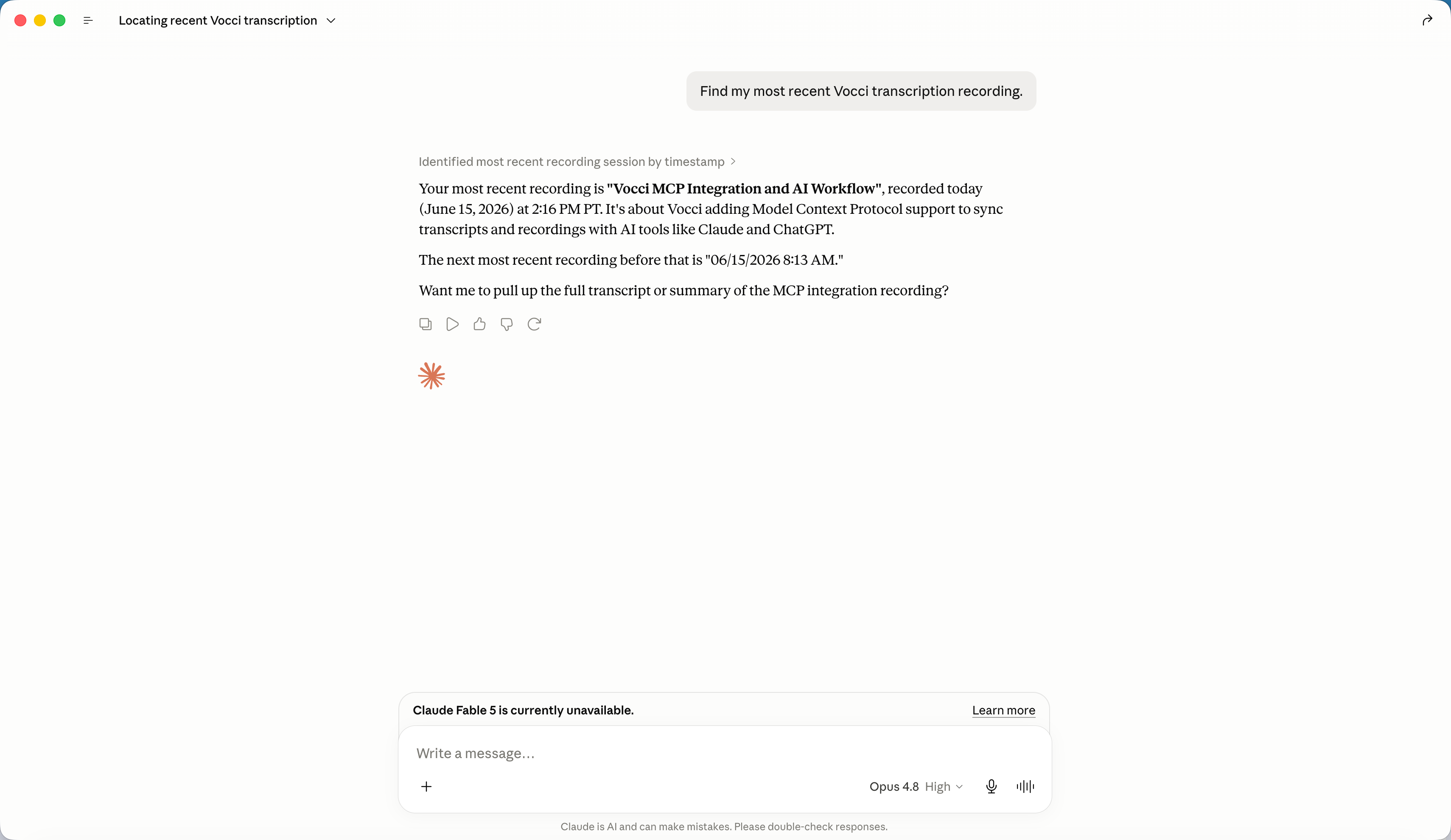
Try:
List my recent Vocci sessions and summarize them
If a returned session looks useful, you can open it for more detail.
Recommended: Use Vocci Automatically
By default, Claude Code only reaches for Vocci when you mention it. To make it proactive — so you do not have to say "Vocci" in every message — add a standing instruction to your project's CLAUDE.md (or ~/.claude/CLAUDE.md to cover every project):
When meeting notes, past conversations, decisions, follow-ups, or other Vocci-recorded context would help you answer better, use the Vocci connector to search my Vocci context before answering.
Now a question like "What did we decide about the launch date?" makes Claude Code check your Vocci context on its own. Vocci access stays read-only.
Troubleshooting
If vocci is added but tools do not load, run /mcp, reconnect vocci, and sign in again. Confirm the configured URL ends with /mcp, and make sure Claude Code is up to date — remote MCP OAuth requires a recent version. Use claude mcp remove vocci (or claude mcp remove --scope user vocci if you added it globally) to start over.