Connect ChatGPT
Vocci is now listed in ChatGPT's plugin directory. You no longer need Developer mode or a manual MCP URL — just find Vocci in the directory and sign in.
Setup
-
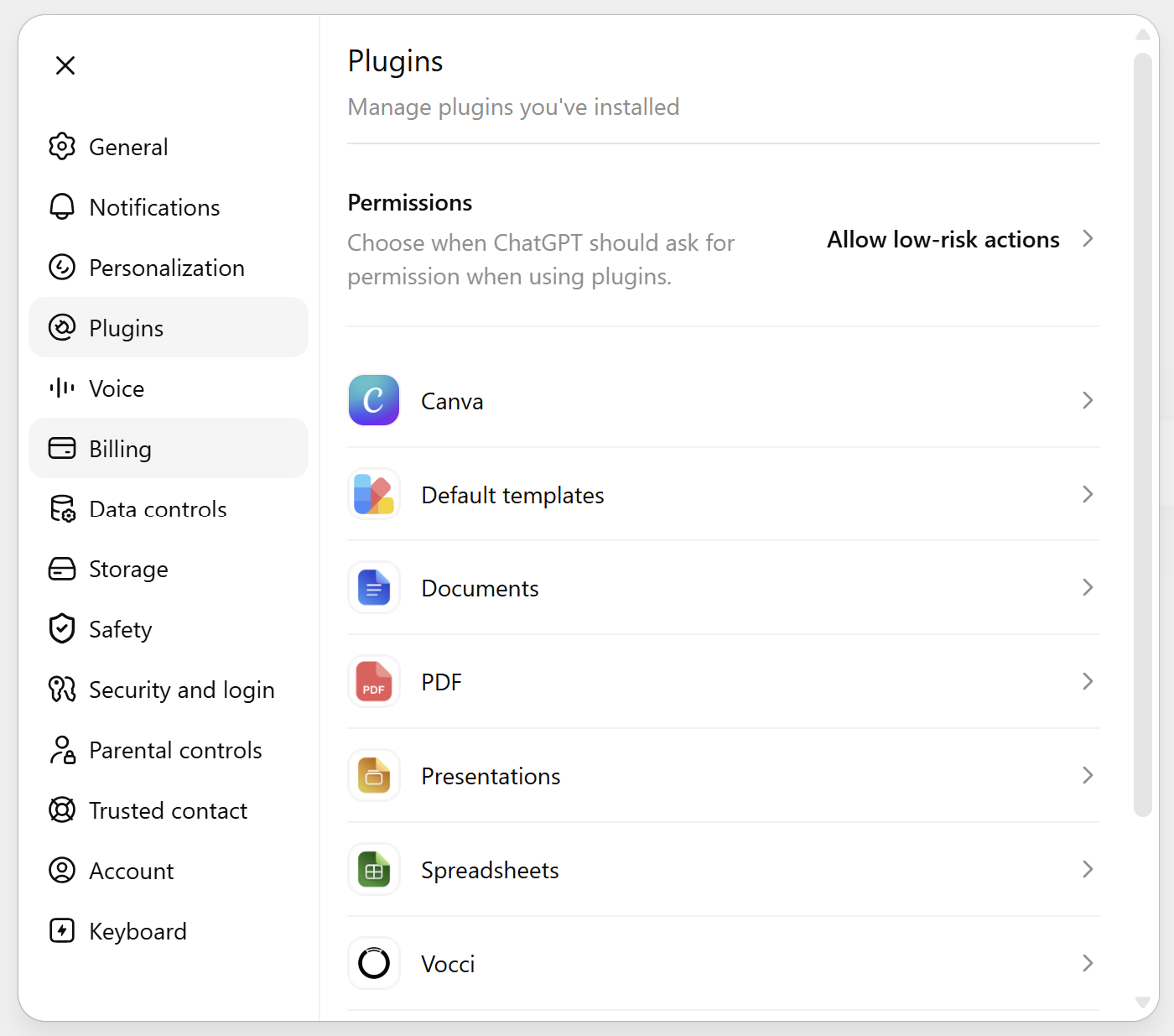
Open ChatGPT settings and go to Plugins.
-
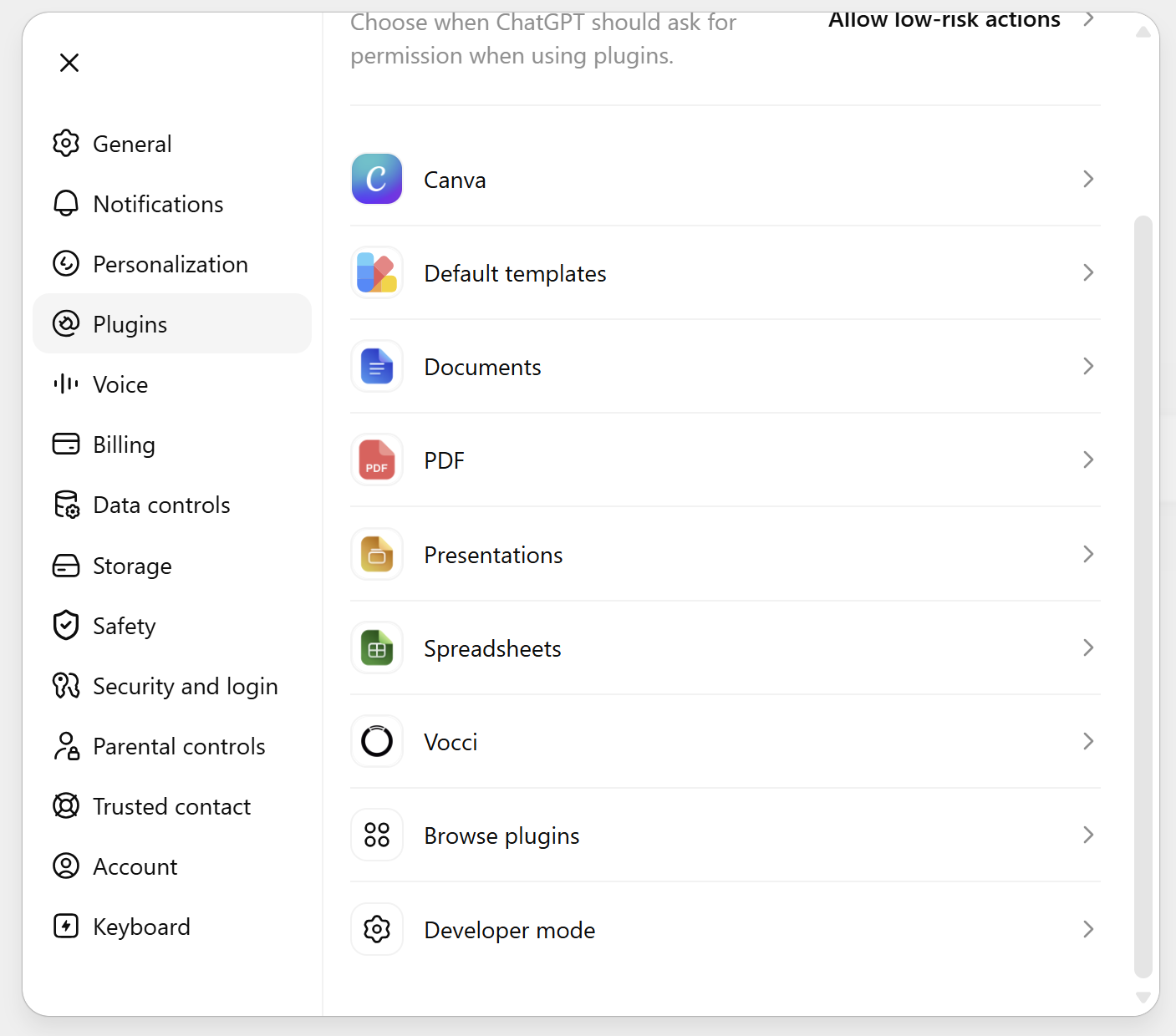
Scroll to the bottom of the plugin list and click Browse plugins.
-
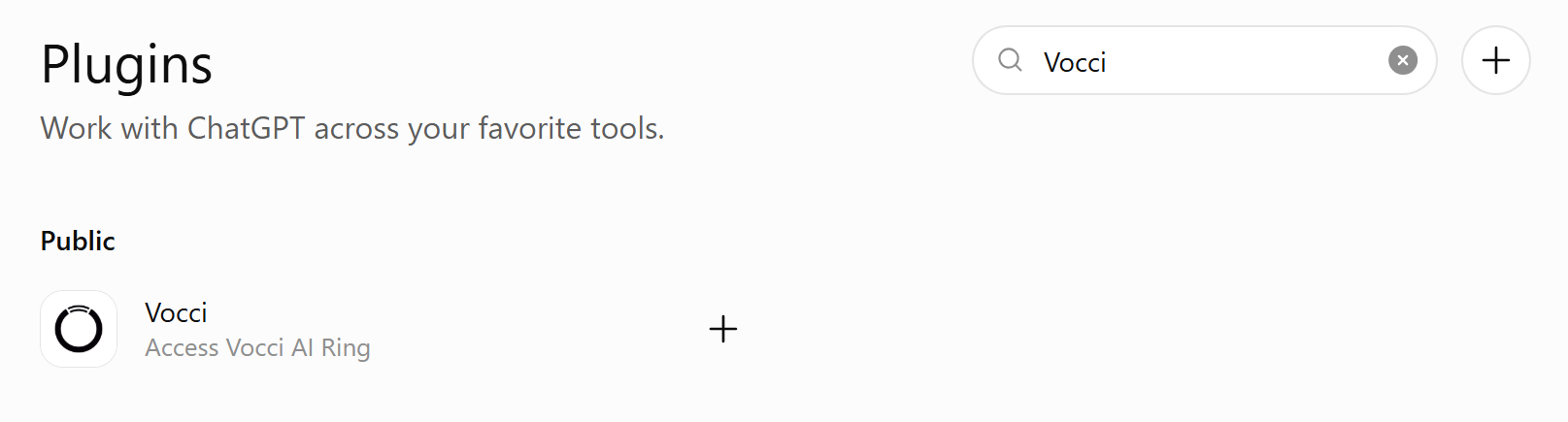
In the directory search box, type Vocci, then select the Vocci plugin.
-
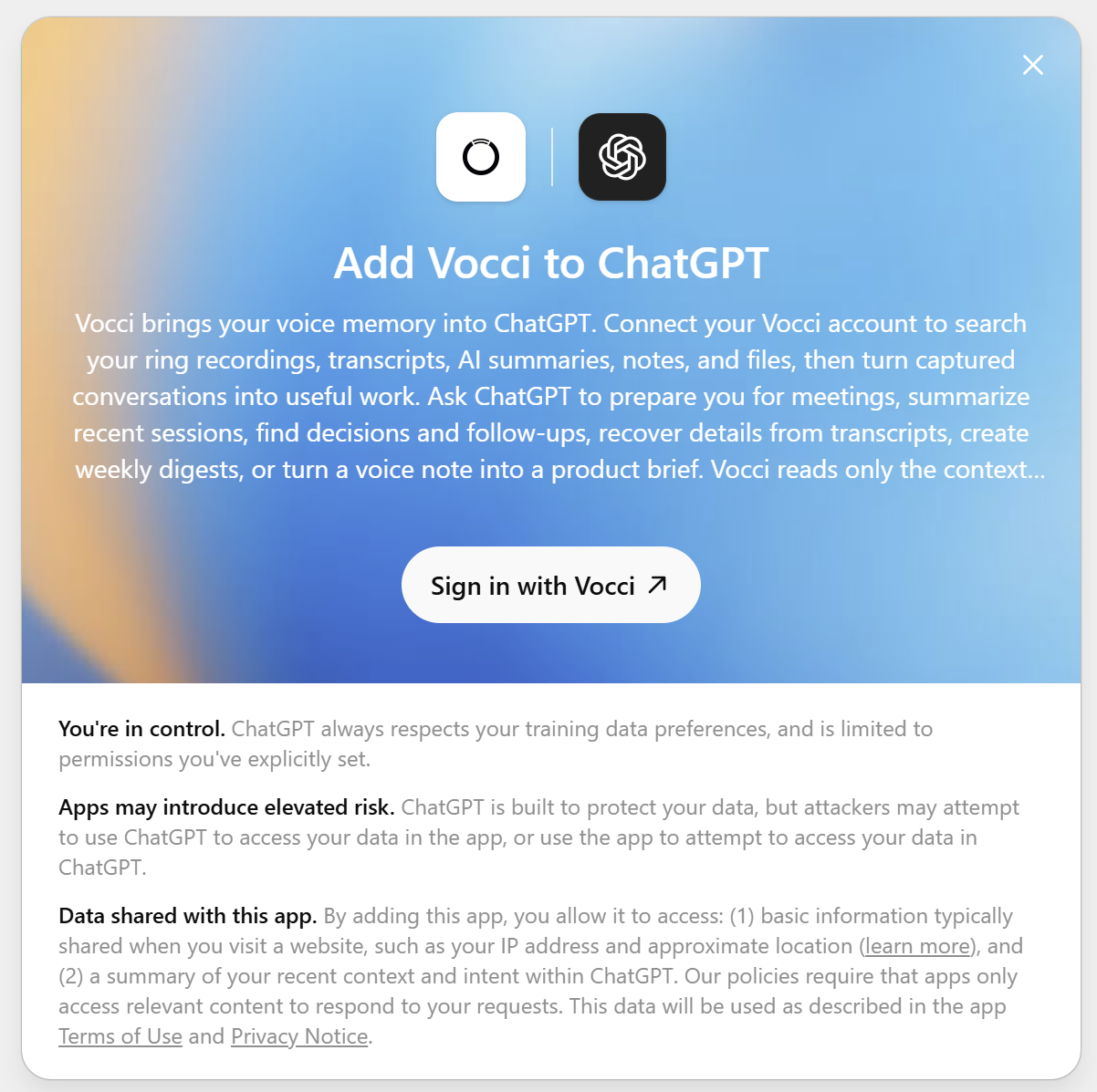
On the Add Vocci to ChatGPT screen, click Sign in with Vocci.
-
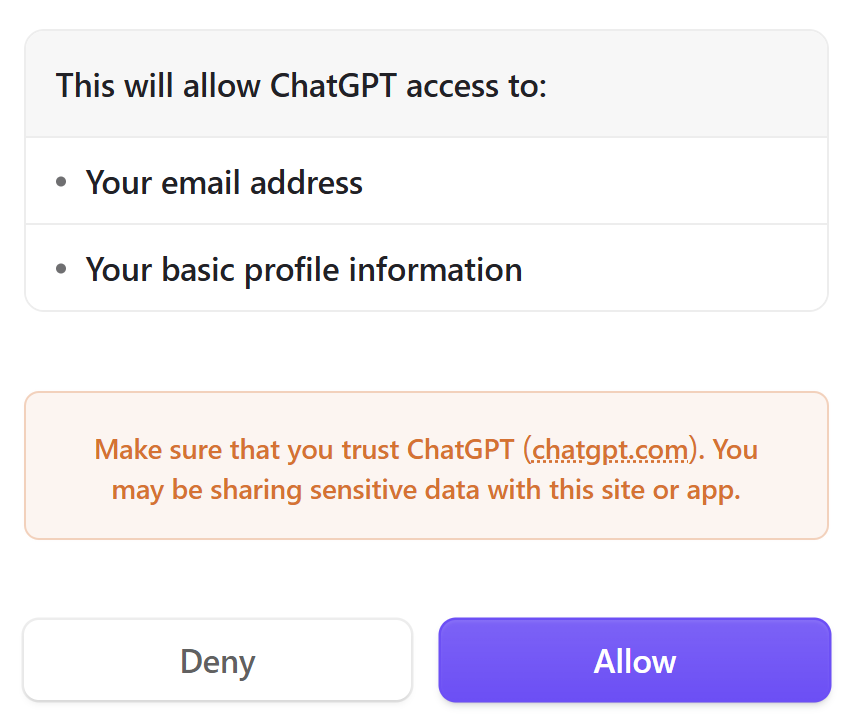
Sign in to Vocci, then click Allow to grant access.
-
Return to ChatGPT and confirm that Vocci appears as connected.
Vocci requests your basic profile and email address to sign you in, plus offline access so the connection keeps working without you needing to re-authenticate every session. Vocci MCP provides read-only access — ChatGPT can search and open approved context, but it cannot change Vocci data through this connection.
Verify Installation
Your setup should now be complete when:
- Vocci appears as connected in ChatGPT.
- ChatGPT shows Vocci tools as available.
- A non-sensitive Vocci request returns recent sessions with titles, summaries, and source IDs.
Try:
List my recent Vocci sessions and summarize them
If a session looks relevant, ChatGPT can open it in more detail and include the returned source ID.
Recommended: Use Vocci Automatically
By default, ChatGPT only uses Vocci when you mention it. To make it proactive — so you do not have to say "Vocci" in every message — add a custom instruction in Settings → Personalization → Custom instructions:
When meeting notes, past conversations, decisions, follow-ups, or other Vocci-recorded context would help you answer better, use the Vocci connector to search my Vocci context before answering.
Now a question like "What did we decide about the launch date?" makes ChatGPT check your Vocci context on its own. Vocci access stays read-only.
Notes
ChatGPT UI names can change. If a label looks different, the important pieces are Plugins, Browse plugins, searching for Vocci, and the Sign in with Vocci flow.